Table of Contents
Case 4.6. Filtering Web Resources Based on QoE Report Records
By default Cubro SG supports only a left-sided asterisk (*) when filtering blacklists. This means that all characters to the left of the asterisk (*) are ignored when searching for matches in a string. The DPI engine does not support an asterisk (*) in the middle or at the end of an expression, as it directly impacts search performance and the ability to handle extremely large lists (up to 4 billion entries).
In this case, valid expressions would be:
*. google.com*example.net
Invalid expressions:
exam*.comexample.**example*example*
The first example *.google.com for this expression search will return a match for all stings like
drive.google.commaps.google.com
 Note: The string google.com alone will not match this expression, meaning the search will return FALSE. Therefore, if you need to specify both a domain and all its subdomains, the correct rule should include two entries:
*.google.comgoogle.com
The second example, *example.net, the search will return a match for all strings of the following type:
newexample.netanotherexample.netsite.example.net
The described function overcomes the above limitations by applying QoE analytics filters, which support full regular expressions for advanced string matching.
When a QoE import entry is added, the system scans the data stream — whether Clickstream, NetFlow, or DNS flow, depending on the selected rule — for matches and automatically adds the identified resources to the rule body.
Additionally, rules can also collect IP addresses of hosts in cases where domain-based blocking is not sufficiently effective.
Rules can be created based on records from QoE analytics reports. Resources that match the specified filter are dynamically added from QoE reports to the rule. To enable this, select the resource type 'Import from QoE' when adding a rule.

The following columns from reports are available:
- Raw Full NetFlow
- Subscriber
- Subscriber Port
- Host
- Host IP
- Host Port
- NetFlow
- Subscriber
- Host
- Host IP
- Raw Clickstream
- Subscriber
- Host
- Clickstream
- Subscriber
- Host
- Host IP
- Raw DNS flow
- Subscriber
- Subscriber port
- Host
- DNS server IP
- DNS server port
- Host IP
- DNS flow
- Subscriber
- Subscriber port
- Host
- DNS server IP
- DNS server port
- Host IP
The following settings are available for modification:
- Column selection
- Imported resource lifetime
- Report execution frequency
- Maximum report execution time
- Row limit

Filters
The operation principle is similar to filters in QoE analytics. More details
Example 1. Adding SNI/CN/URL records
- Add all records containing "facebook"
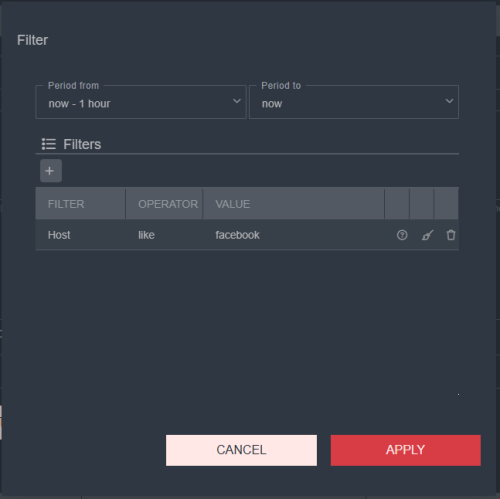
- Click Apply

- Click Add to list


The rule will start immediately after saving the settings.
After polling, if analytics contain records with "facebook" in the "host" field, the WEB FILTER will add URLs, SNI, and CN for the "host" value of this record.

Example 2. Adding SNI/CN/URL records using regex filters
A more complex filter example: Add all domains starting with "menod" and ending with ".firebaseio.com"
In this case, use the "match" filter with the regular expression ^menod.*\.firebaseio\.com$, where:
^- start of the string.- any single character*- zero or more (meaning any character after "menod" can appear any number of times)\- escapes a metacharacter (needed to specify a literal dot before "firebaseio.com")$- end of string

You can check the correctness of the regular expression in the QoE analytics interface or at https://regex101.com/
Thus, the filter will match:
- menod123.firebaseio.com
- menod.firebaseio.com
- menod.some-thing.firebaseio.com
It will not match:
- men.firebaseio.com
- mmenod.firebaseio.com
- menodfirebaseio.com
Example 3: Adding IP / IP PORT records
In addition to SNI/CN/URL, "IP" or "IP PORT" records can also be added to the blacklist. For example, let's add all "IP PORT" records for all hosts containing "google".
- Port numbers are only available in raw logs, so select the "Raw full netflow" table
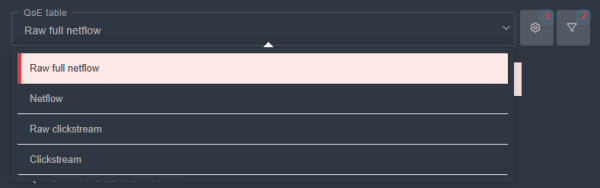
- In the settings, select the columns "Host IP" and "Host port"
If you only need to add IP without specifying the port number, select only the "Host IP" column
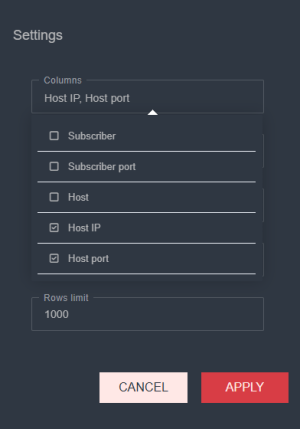


After enabling the rule, all IP PORT records for hosts containing "google" will be added to the resource list.
