Table of Contents
Case 6.1. Import QoE for Custom Protocols
The system supports automatic import of resources (SNI, IP, and IP [port]) into custom protocols based on data from QoE reports, according to specified filters and schedules. This feature is used when a standard entry like *.domain.com is insufficient or when a large number of SNIs matching a specific filter (mask or regular expression) need to be added.
The QoE Import mechanism allows the system to scan all user requests to external networks and extract matches based on predefined rules. When a “QoE Import” entry is added and a scan source (report) is specified, the system automatically adds the corresponding resources to the custom protocol.
Only valid entries with a properly recorded request-response exchange are imported. The system tracks the status of these entries based on their configured time-to-live. If a resource no longer appears in QoE reports after this period, it is automatically removed — preventing the accumulation of outdated data.
Setup
Step 1: Create a new custom protocol as shown in Case 6. Custom Protocols / Signatures or use an existing one in the next step
Step 2: Go to Custom Protocols → QoE Import
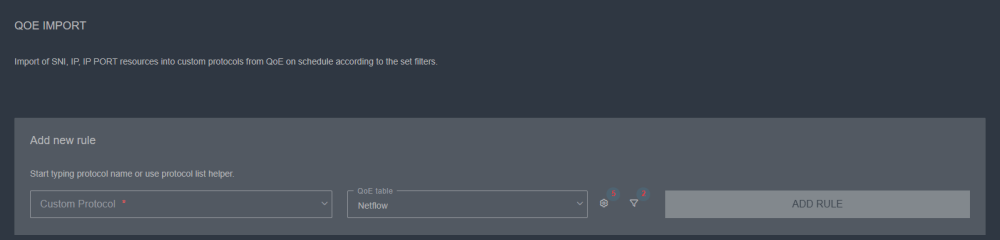
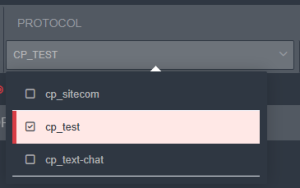
Step 3: In the Custom protocol field, select the protocol to which the resources will be added
Step 4: Select the QoE report from which the data will be imported:
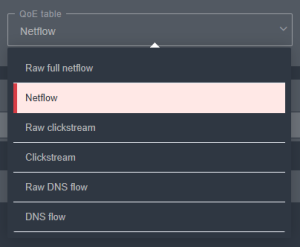
Data can be imported from the following columns of QoE reports:
| Type | Description | Columns |
|---|---|---|
| Raw full NetFlow | Non-aggregated NetFlow data | Subscriber |
| Subscriber Port | ||
| Host | ||
| Host IP | ||
| Host Port | ||
| NetFlow | Aggregated NetFlow data (recommended) | Subscriber |
| Host | ||
| Host IP | ||
| Raw Clickstream | Non-aggregated clickstream data (all requests through the HTTP, HTTPS and QUIC protocols) | Subscriber |
| Host | ||
| Clickstream | Aggregated clickstream data (all requests through the HTTP, HTTPS and QUIC protocols) | Subscriber |
| Host | ||
| Host IP | ||
| Raw DNS flow | Non-aggregated DNS data | Subscriber |
| Subscriber port | ||
| Host | ||
| DNS server IP | ||
| DNS server port | ||
| Host IP | ||
| DNS Flow | Aggregated DNS data | Subscriber |
| Subscriber port | ||
| Host | ||
| DNS server IP | ||
| DNS server port | ||
| Host IP |
Step 5: Import Settings
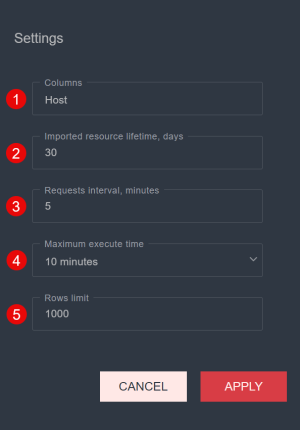
- Selection of report columns for import
- A resource will be deleted after the specified period if it does not appear at least once in the selected QoE report
- Report execution frequency
- Report generation timeout — the report will be canceled if not completed within the specified time
- Maximum number of rows from the report to be added to the protocol during a single import cycle
 Default settings are optimized and recommended
Step 6: Filter Settings

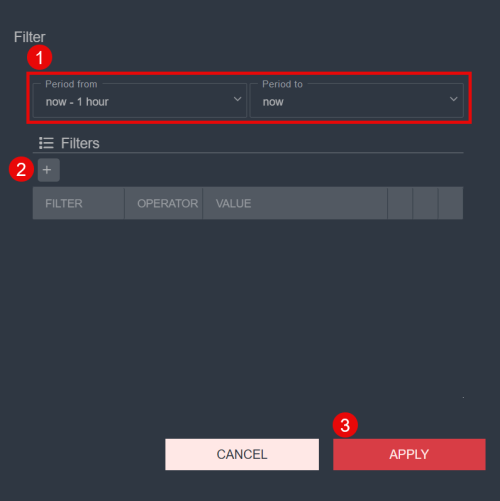
- Set the time range. It must not be shorter than the QoE report aggregation period configured in the system.
- Click the “+” button to add a filter. Filters are identical to those used in the QoE interface.
For more details on working with filters and operators, refer to Generating Reports in the Case 15. Generating Reports in the QoE Analytics Section Section. Example use cases are described below: Use Cases. - Click APPLY
Step 7: Click the “ADD RULE” button

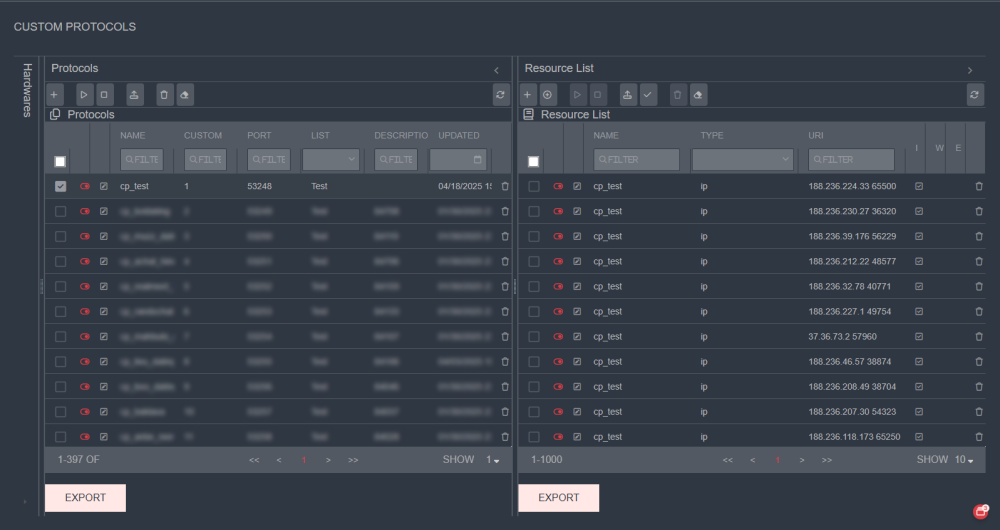
After the report is executed, the resources will be added to the custom protocol:
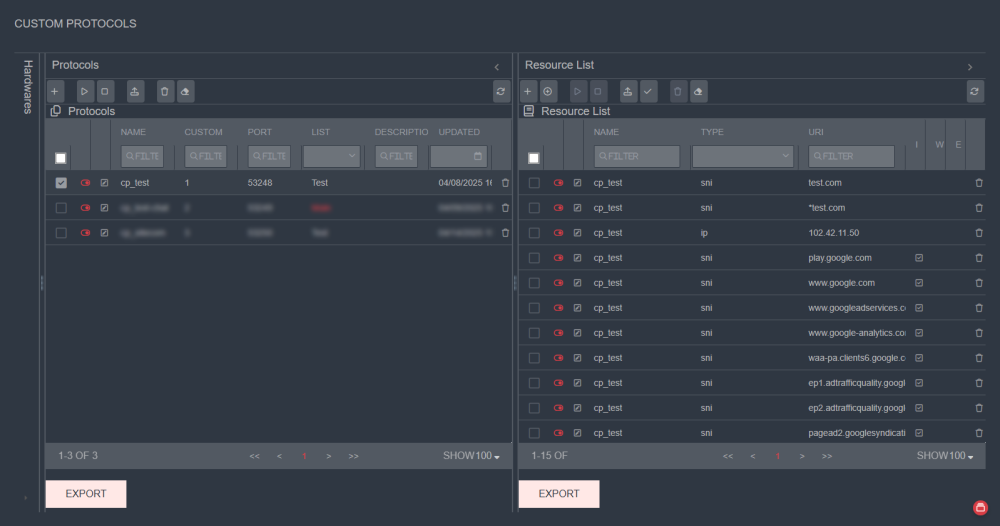
Imported resources are indicated by checkbox icons in column I.
Use Cases
1. Simple search for domains containing a specific substring anywhere in the name (like operator)
Example:

.cariboucoffee.com.
Matching examples:
id.cariboucoffee.com.trsite.cariboucoffee.com.kwid.users.cariboucoffee.com.uk
2. Search with a dynamic part within the domain name (using like and match operators)
Advanced search where the domain name contains a variable part in the middle.
Example using the like operator

site%.example.com, The % symbol represents any number of any characters (including zero characters).
In this example, there can be any number of characters both before site and after .example.com.
Matching examples:
site.example.comsite-new.example.comid.newsites.example.com.uk
Example using the match operator

^site.*\.example\.com$ - matches domain names that start with site, followed by any number of any characters, and end with .example.com. Let's break down this regular expression in more detail:
^— start of the string. Indicates that the match must begin withsitesite— the literal string that must be present at the beginning.*— any number of any characters. This means there can be any number of characters betweensiteand.example.com\.example\.com— matches.example.comexactly. The dots (.) are escaped (\.) to be interpreted as literal dots rather than regex metacharacters$— end of the string. Indicates that nothing should follow after.example.com
Matching examples:
site-new.example.comsitesmth123.example.comsite.sub.example.com
For more details on regular expression syntax, refer to https://github.com/google/re2/wiki/Syntax
You can test your regular expression using the QoE Analytics interface or at https://regex101.com/
3. Search across multiple domains (using the match operator)
You can add multiple resources into a single filter by using the match operator with a regular expression.
To separate domain patterns, use the pipe (|) metacharacter, which stands for logical "OR".
Example using the match operator:
^rbm.*\.googleapis\.com$|jibe\.googleapis\.|jibe.*google\.com$
This will match any record that fits any of the following regular expressions:
^rbm.*\.googleapis\.com$jibe\.googleapis\.jibe.*google\.com$
4. Adding entries of type IP / IP [port]
Entries in the format IP [port] can only be added from the Raw NetFlow report. In the import settings, make sure to check the columns Host IP and Host port.
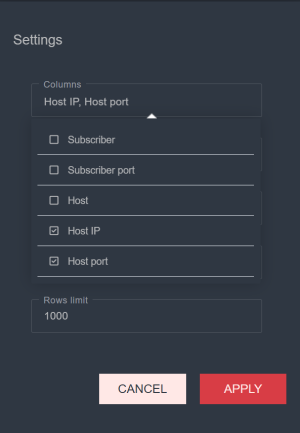
To add entries of type IP (without port), you can choose any report except Raw Clickstream and select the Host IP column in the import settings.
Once the rule is executed, the custom protocol will include IP [port] entries that match the filter specified via the QoE import.