Table of Contents
Case 15. Generating Reports in the QoE Analytics Section
Statistics from DPI are accumulated in the QoE cluster. To generate a report, go to the QoE Analytics section of the operator interface — where access to QoE is available.
The following sections are accessible:
- NetFlow;
- Raw Full NetFlow;
- Clickstream;
- Raw Clickstream;
- DNS Flow;
- Raw DNS Flow.
GTP Flow and NAT Flow reports are not used.
Report Generation
- Select the section and report (1).
- Choose the time period for displaying data in the report (2);
- Set filters for the report (5).
Data in the report can be displayed in table or chart format. In reports where chart display is available, you can select the chart type (11): spline area, area, stacked area, line, or stacked bar chart.
The generated report can be exported in the following formats:
- Table in Excel, TabSeparated, CSV, PDF, or PNG formats (9). You can set the number of rows per page (10), and this number will be reflected in the exported report;
- Chart — in PNG and PDF formats (12).
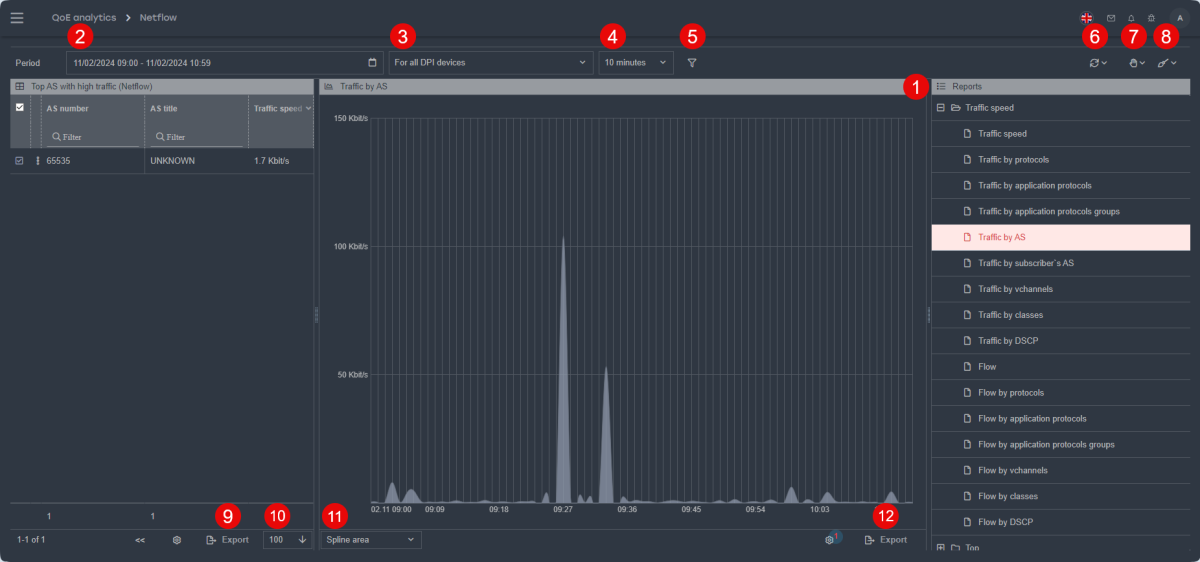
- Select the device for displaying data (3);
- Set a maximum report generation time (4). This defines the maximum time for loading the report; if the report does not load within the specified time, loading will be canceled.
FIlters use cases
Filters in reports enable users to refine data based on specific criteria, making it easier to locate necessary information within large datasets.
Report filtering is available in the QoE analytics sections: Netflow, Raw full netflow, Clickstream, and Raw clickstream.
Before applying filters, a time interval must be selected using the "Period" field:
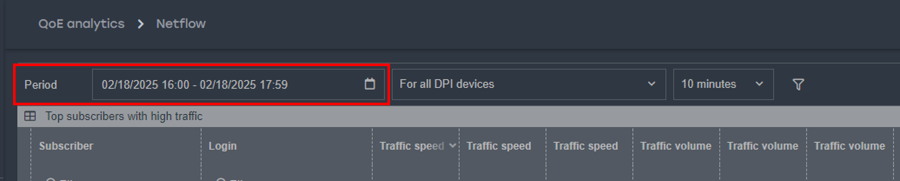
There are two ways to specify a period:
- Custom range — manually set the Start and End time;
- Quick ranges — predefined date and time intervals available from a list.
Case 1. Searching for a subscriber in QoE
This filter is used to track activity for a specific subscriber, IP pool, or subscriber list.
Search can be performed by IP or Login. If one filter does not return the expected results, try using another.
1. Select the appropriate filter:
- "Subscriber" for IP-based search;
- "Login" for username-based search.
2. Configure the filter using one of the following options:
| Single subscriber | IP: Login:  |
| Subscriber pool | IP: |
| Subscriber list | IP: Login: 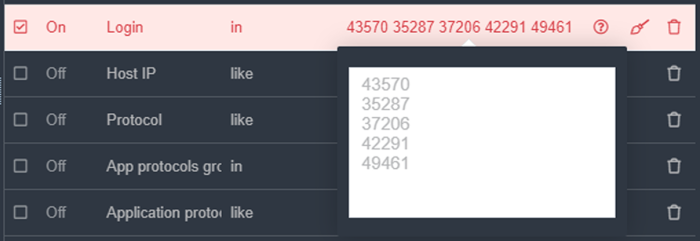 |
3. Enable the filter by checking the box next to it;
4. Click "Apply".
Case 2. Filtering by resource
This filter helps identify subscribers who have accessed a specific resource or a list of resources.
- Select the "Host" filter;
- Choose the "=" or "like" operator;
- Enter the resource name;
- Enable the filter by checking the box next to it;
- Click "Apply".
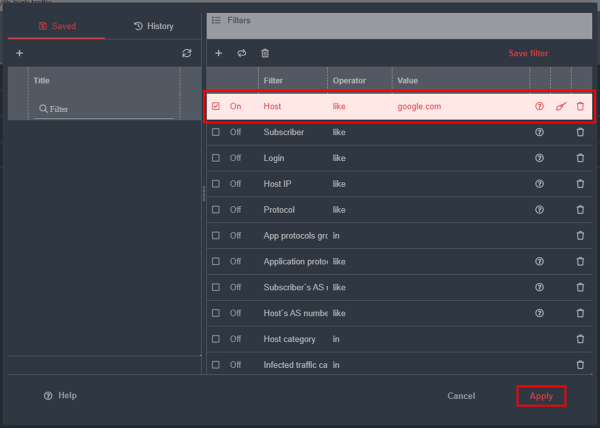
To filter by a list of resources, use the method outlined in Case 1. Searching for a subscriber in QoE → Subscriber list.
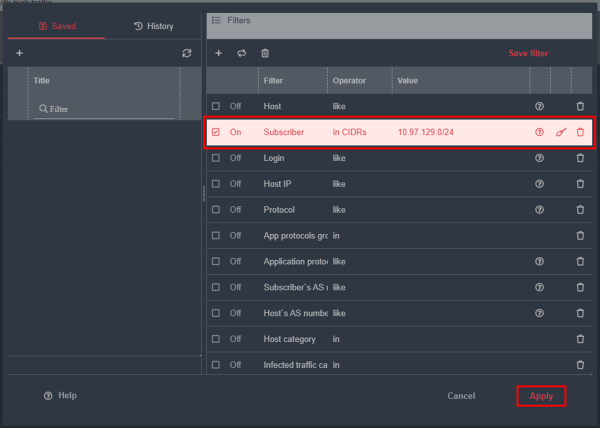
Case 3. Filtering by CIDR address
This filter is used to refine data by an IP address with a subnet mask.
- Select the "Subscriber" filter;
- Choose the "in CIDR's" operator;
- Enter the IP address with the subnet mask;
- Enable the filter by checking the box next to it;
- Click "Apply".
Case 4. Filtering by Application Protocol
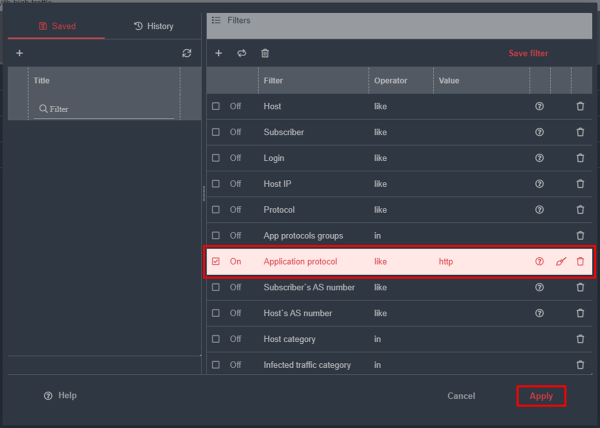
This filter applies when searching for subscribers assigned a specific application protocol.
- Select the "Application Protocol" filter;
- Choose the "=" or "like" operator;
- Enter the protocol name;
- Enable the filter by checking the box next to it;
- Click "Apply".
Saving Filters and Settings Profiles
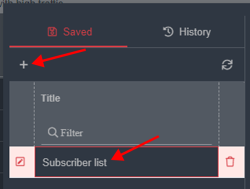
Filters set up in the scenarios section can be saved as profiles for quick reuse in future reports. To do this:
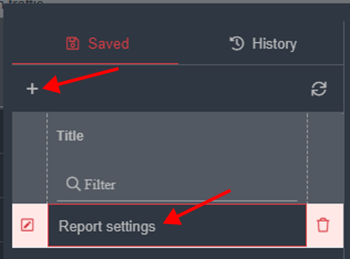
- Click the "+" button on the left side of the filter configuration window, under the "Saved" tab, to create a profile and assign it a name:
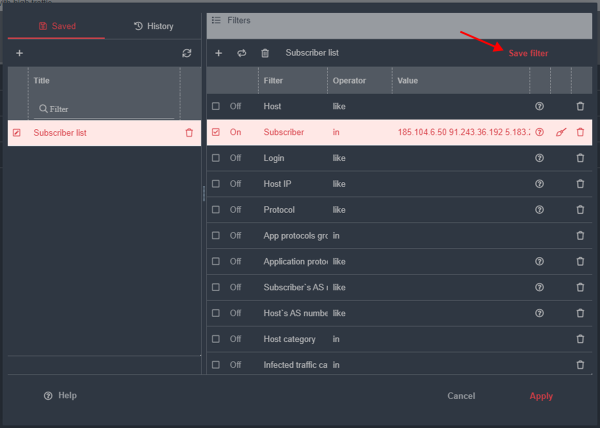
- Configure the necessary filters and enable them. Examples: FIlters use cases
- Click the "Save Filter" button
Filter profiles are stored within a specific section. This means profiles created in the "NetFlow" section can be applied to all reports in that section but will not be accessible in "Raw Full NetFlow," "Clickstream," or other sections.
For ease of use, you can customize the number of rows and columns displayed in the report table. To modify these settings, click the gear icon located below the table.
In the window that appears, create a settings profile:
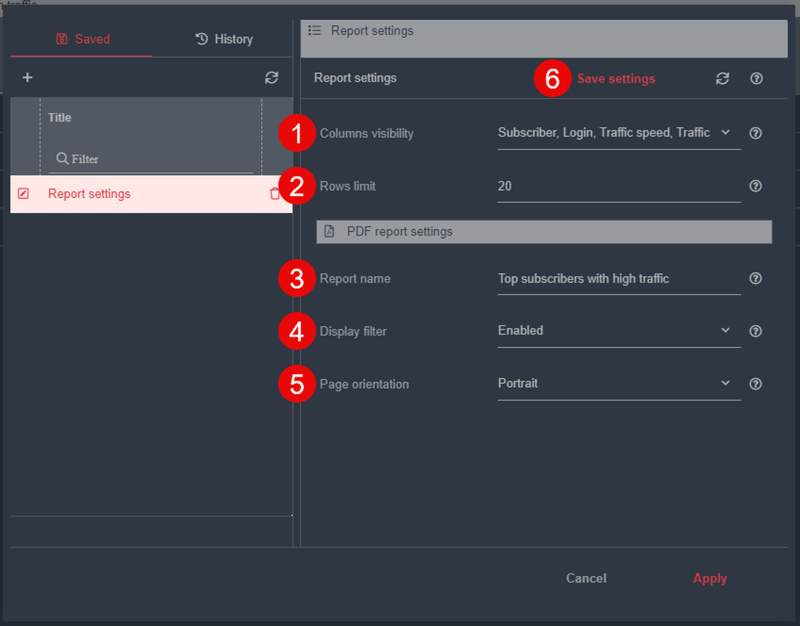
For a table report, you can adjust:
- Column visibility;
- Row limit;
- Report name;
- Display filter;
- Page orientation.
- By clicking the "Save settings" button, you can store the customized settings for quick access in future reports.
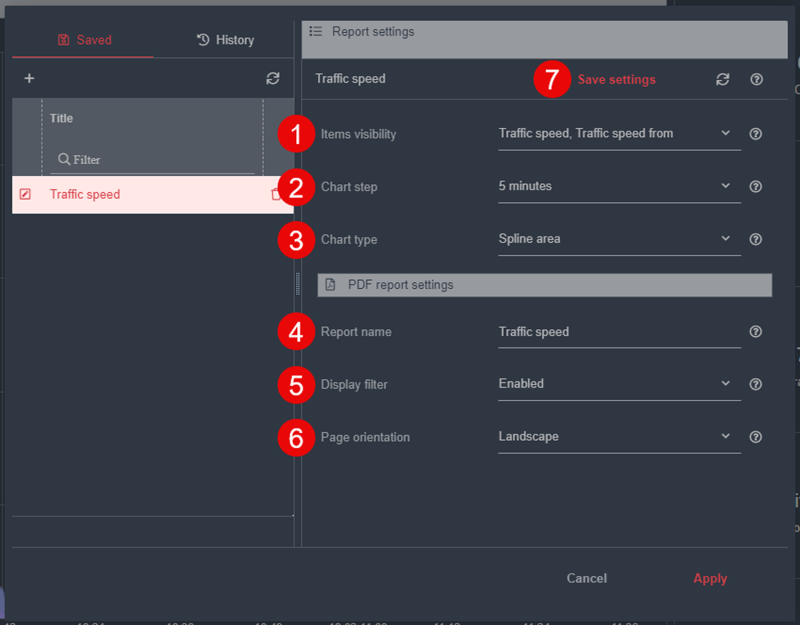
For a chart report, you can adjust:
- Items visibility;
- Chart step;
- Chart type;
- Report name;
- Display filter;
- Page orientation.
- By clicking the "Save settings" button, you can store the customized settings for quick access in future reports.
Filter and Operator Lists
Available Filters in QoE Analytics Sections
NetFlow
| Field | Description | Commonly Used Operators |
|---|---|---|
| Host | Host Name. Examples: mail.google.com *.youtube.com 149.154.167.151:80 | =like |
| Subscriber | Subscriber IP address | =likein CIDR’snot in CIDR’s |
| Login | Numeric identifier of the subscriber in the billing system | =like |
| Host IP | Host IP address | =likein CIDR’snot in CIDR’s |
| Protocol | Network protocol Example: TCP 6 | =like |
| App Protocols Groups | The filter value is selected from a drop-down list of protocol groups | innot in |
| Application Protocol | Example: https 443 | =like |
| Subscriber’s AS Number | AS number assigned to a subscriber. Each request to or from a subscriber shares the same AS number | =like |
| Host’s AS Number | AS number assigned to a host. Each request to or from a host shares the same AS number | =like |
| Host Category | The filter value is selected from a drop-down list of categories | innot in |
| Infected Traffic Category | Categories include: Botnet hosts (Kaspersky) Malicious hosts (Kaspersky) Phishing hosts (Kaspersky) | innot in |
| Vchannel/Bridge | Vchannel - vChannel number Bridge - identifier of the bridge through which the traffic passes DPI sends either Bridge or Vchannel, depending on operational mode | =like |
| Post NAT Source IPv4 Address | Public IP address assigned by NAT for external communication | =likein CIDR’snot in CIDR’s |
| Post NAT Source Port | Public port assigned by NAT for external communication | =like |
| Class | Traffic classes cs0 to cs7. 0 — cs0 1 — cs1 … 7 — cs7 | =like |
| DSCP | Extended traffic class values. | =like |
| Traffic Direction | Possible values: From subscriber To subscriber | =!= |
| MPLS Labels | Labels responsible for data packet transmission on the network. Encoded in base64. Example: C7pB/w== | =like |
Raw Full NetFlow
| Field | Description | Commonly Used Operators |
|---|---|---|
| Session ID | Unique session identifier Example: 101292583003281746 | =like |
| Source IPv4 Address | IPv4 address of request origin. If the request is from a subscriber, the subscriber’s address appears here; if to a subscriber, the host’s address appears | =likein CIDR’snot in CIDR’s |
| Source IPv6 Address | IPv6 address of request origin. If the request is from a subscriber, the subscriber’s address appears here; if to a subscriber, the host’s address appears | =like |
| Source Port | Port of the request origin. If the request is from a subscriber, the subscriber’s port appears here; if to a subscriber, the host’s port appears | =like |
| Source AS Number | AS number of the request origin. If the request is from a subscriber, the subscriber’s AS appears here; if to a subscriber, the host’s AS appears | =like |
| Destination IPv4 Address | IPv4 address of request recipient. If the request is directed to the host, the host’s address appears here; if to a subscriber, the subscriber’s address appears | =likein CIDR’snot in CIDR’s |
| Destination IPv6 Address | IPv6 address of request recipient. If the request is directed to the host, the host’s address appears here; if to a subscriber, the subscriber’s address appears | =like |
| Destination Port | Port of request recipient. If the request is directed to the host, the host’s port appears here; if to a subscriber, the subscriber’s port appears | =like |
| Destination AS Number | AS number of the request recipient. If directed to the host, the host’s AS appears here; if to a subscriber, the subscriber’s AS appears | =like |
| Net Protocol | Example: TCP 6 | =like |
| Application Protocol | Example: https 443 | =like |
| App Protocols Groups | The filter value is selected from a drop-down list of protocol groups | innot in |
| Login | Numeric identifier of the subscriber in the billing system | =like |
| Subscriber | Subscriber IP address | =likein CIDR’snot in CIDR’s |
| Subscriber’s AS Number | AS number assigned to a subscriber. Each request to or from a subscriber shares the same AS number | =like |
| Subscriber’s Port | A port assigned to a specific subscriber. Each request to or from a subscriber shares the same port | =like |
| Host | Host Name. Examples: mail.google.com *.youtube.com 149.154.167.151:80 | =like |
| Host’s AS Number | AS number assigned to a host. Each request to or from a host shares the same AS number | =like |
| Host’s Port | A port assigned to a specific host. Every request to or from a host shares the same port | =like |
| Host IP | Host IP address | =likein CIDR’snot in CIDR’s |
| Vchannel/Bridge | Vchannel - vChannel number Bridge - identifier of the bridge through which the traffic passes DPI sends either Bridge or Vchannel, depending on operational mode | =like |
| Post NAT Source IPv4 Address | Public IP address assigned by NAT for external communication | =likein CIDR’snot in CIDR’s |
| Post NAT Source Port | Public port assigned by NAT for external communication | =like |
| Traffic Direction | Possible values: From subscriber To subscriber | =!= |
| VLAN ID | Identifier of the VLAN through which traffic entered. Example: 4038 | =like |
| Post VLAN ID | Identifier of the VLAN through which traffic exited. Example: 4031 | =like |
| MPLS Labels | Labels responsible for data packet transmission on the network. Encoded in base64. Example: C7pB/w== | =like |
| Class | Traffic classes cs0 to cs7. 0 — cs0 1 — cs1 … 7 — cs7 | =like |
| DSCP | Extended traffic class values. | =like |
Clickstream
| Field | Description | Commonly Used Operators |
|---|---|---|
| Host | Host Name. Examples: mail.google.com *.youtube.com 149.154.167.151:80 | =like |
| Subscriber | Subscriber's IP address | =likein CIDR’snot in CIDR’s |
| Login | Numeric identifier of the subscriber in the billing system | =like |
| Device | Identifies the device from which the request originated | =like |
| Host IP | IP address of the host | =likein CIDR’snot in CIDR’s |
| URL | Domain and full address accessed by the subscriber | =like |
| Host Category | The filter value is selected from a predefined category list | innot in |
| Infected Traffic Category | Available categories: Botnet hosts (Kaspersky) Malicious hosts (Kaspersky) Phishing hosts (Kaspersky) | innot in |
| Vchannel/Bridge | Vchannel - vChannel number Bridge - Identifier of the bridge handling the traffic The field contains either Vchannel or Bridge value, depending on DPI’s operational mode, assigning IPs accordingly. | =like |
| Locked | Possible values: 0 - unlocked traffic 1 - locked traffic | =!= |
| Traffic Direction | Possible values: From subscriber To subscriber | =!= |
Raw clickstream
| Field | Explanation | Frequently used operators |
|---|---|---|
| Session ID | Unique session identifier. Example: 101292583003281746 | =like |
| Source IPv4-address | IPv4 address of the request origin. If the request is from a subscriber - the subscriber's address appears here, otherwise - the host's address | =likein CIDR’snot in CIDR’s |
| Destination IPv4-address | IPv4 address of the request recipient. If the request is sent to the host - the host's address is specified here, otherwise - the subscriber's address | =likein CIDR’snot in CIDR’s |
| Source IPv6-address | IPv6 address of the request origin. If the request is from a subscriber - the subscriber's address appears here, otherwise - the host's address | =like |
| Destination IPv6-address | IPv6 address of the request recipient. If the request is sent to the host - the host's address is specified here, otherwise - the subscriber's address | =like |
| Login | Numeric subscriber identifier in the billing system | =like |
| Host | Host Name. Examples: mail.google.com *.youtube.com 149.154.167.151:80 | =like |
| Path | The specific address visited by the subscriber | =like |
| Referer | The resource from which the request originated. Stores the URL from which the user was redirected | =like |
| User agent | Identifies the device and browser from which the request was made | =like |
| Vchannel/Bridge | Vchannel - vChannel number Bridge - number of the bridge handling the traffic The field specifies either the Vchannel or Bridge value sent by DPI. Depending on the mode, it forwards either Bridge or Vchannel associated with a given IP. | =like |
| Locked | Possible values: 0 - unlocked traffic 1 - locked traffic | =!= |
| Traffic direction | Possible values: From subscriber To subscriber | =!= |
Operators
| Operator | Description | Data input format |
|---|---|---|
= | Retrieves records that exactly match the specified value | |
!= | Retrieves records that do not match the specified value | |
like | Finds records containing the specified character sequence | |
ilike | Functions like like but ignores case sensitivity | |
not like | Finds records excluding those containing the specified character sequence | |
not ilike | Functions like not like but ignores case sensitivity | |
match | Retrieves records that conform to a given regular expression pattern | See link for input format and examples |
not match | Retrieves records that do not conform to the given regular expression pattern | See link for input format and examples |
> | Retrieves records with values greater than the specified value | |
>= | Retrieves records with values greater than or equal to the specified value | |
< | Retrieves records with values less than the specified value | |
<= | Retrieves records with values less than or equal to the specified value | |
in | Accepts multiple values and retrieves records matching any value from the list. Each value should be entered on a new line | Each value on a new line |
not in | Accepts multiple values and retrieves records excluding those matching any value from the list. Each value should be entered on a new line | Each value on a new line |
between | Retrieves records where the value falls within the specified range (inclusive of both values) | Each value on a new line |
not between | Retrieves records excluding those where the value falls within the specified range (inclusive) | Each value on a new line |
in CIDRs | Accepts multiple CIDR values and retrieves records matching any CIDR from the list. Each value should be entered on a new line | 192.0.2.32/27 Each value on a new line |
not in CIDRs | Accepts multiple CIDR values and retrieves records excluding those matching any CIDR from the list. Each value should be entered on a new line | 192.0.2.32/27 Each value on a new line |
Determines whether a string adheres to a simple regular expression. Regular expressions can contain the following metasymbols:
- % represents any number of characters (including none).
- _ represents any single character.