DPI recovery
To do this, click the "Create export tasks for node" button to export all tasks to the DPI.
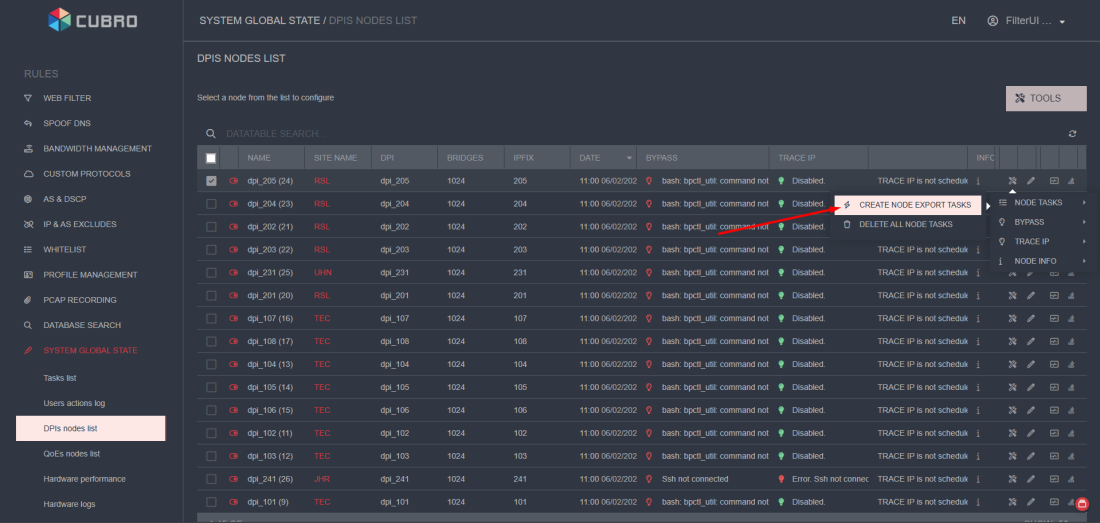
1. Prepare the DPI Server
General server preparation requirements:
- Disable Hyper-Threading in BIOS — this is mandatory!
- When commissioning a new server, make sure the BMC remote management interface is properly configured according to the IP plan and is accessible.
- Operating System: CentOS 8.5 or the latest CentOS 8 Stream.
- Set the
hostnamein the following format:
For servers at TEC site:tec_cub_dpi_xx
For servers at RSL site:rsl_cub_dpi_xx
For servers at UHN site:uhn_cub_dpi_xx
Wherexxis the server number at the site. - Locale:
en_US.UTF-8 - Timezone:
GMT+3 - User Configuration:
Set a strong password for therootuser.
Create additional user:
Login:cubromnt
Password:•••••••••••(must be specified securely)
This user must have SUDO privileges!
Disk Layout
Prepare disk partitioning according to the provided storage layout recommendations.
Filesystem markup
| Disk type | Raid RAID |
|---|---|
| 3,84TB SSD_0 | Dynamic data /var/log/dpi |
| 3,84TB SSD_1 | Dynamic data /var/dump/dpi |
| m2nmve_0 | OS RAID1 Md_raid |
| m2nmve_1 | OS RAID1 Md_raid |
| Mount point | size, GB | Array |
|---|---|---|
| /boot/efi | 1 | Md_raid |
| / | 256 | Md_raid |
| /home | 256 | Md_raid |
| /SWAP | 32 | Md_raid |
| /var | All available | Md_raid |
| /var/log/dpi | All available | SSD_0 |
| /var/dump/dpi | All available | SSD_1 |
2. Post-OS Installation: System Verification Checklist
After installing the operating system, verify the following essential system parameters:
- Confirm that the management network interface is properly configured and accessible.
- Ensure the hostname is correctly set according to the naming convention.
- Check that the system locale is set to
en_US.UTF-8. - Verify system date and time (if needed, configure NTP synchronization).
Edit the Chrony configuration file:vi /etc/chrony.conf
Configure NTP Servers:
server 0.asia.pool.ntp.org
server 1.asia.pool.ntp.org
server 2.asia.pool.ntp.org
server 3.asia.pool.ntp.org
Enable and start the time synchronization service:systemctl --now enable chronyd
- Verify that the following directories are mounted and writable:
/var/dump/dpi- for core dumps
/var/log/dpi- for DPI logs - Ensure that DNS are available and there is Internet access from the server.
- Confirm that the server has network access to QoE servers.
3. Install Cubro SG software
- Intel E810 (E810-CQDA2) Firmware and DDP Update Instructions
⚠️ Make sure the latest firmware is installed on the Intel card.
Older versions may not support GRE tunnels.- Stop the fastdpi process
Note: The server may hang during this step. - Unbind the NICs from DPDK (restore to system drivers)
driverctl unset-override 0000:02:00.0
driverctl unset-override 0000:02:00.1
driverctl unset-override 0000:41:00.0
driverctl unset-override 0000:41:00.1
driverctl unset-override 0000:85:00.0
driverctl unset-override 0000:85:00.1
driverctl unset-override 0000:86:00.0
driverctl unset-override 0000:86:00.1
- Upload and Install the Firmware
Upload the firmware archive (can be found on existing DPI nodes at /root/E810/) to the server.
Extract the firmware package for Linux.
Run: nvmupdate64e
Select: ALL
Choose Backup: NO
Reboot the system after the update.
Wait for the server to fully restart. - Install the DDP Package:
rm -rf /lib/firmware/intel/ice/ddp/*
cp /root/E810/ice_comms-1.3.46.0.pkg /lib/firmware/intel/ice/ddp/
cp /root/E810/ice.pkg /lib/firmware/intel/ice/ddp/
Expected output:ls /lib/firmware/intel/ice/ddp/ ice_comms-1.3.46.0.pkg ice.pkg
- Rebuild Initramfs:
dracut --regenerate-all --force
- Reboot again
- Verify DDP Package Loading. After reboot, check the logs:
dmesg | grep DDP
Expected line:The DDP package was successfully loaded: ICE COMMS Package version 1.3.46.0
- Rebind NICs to DPDK (vfio-pci):
driverctl set-override 0000:02:00.0 vfio-pci
driverctl set-override 0000:02:00.1 vfio-pci
driverctl set-override 0000:41:00.0 vfio-pci
driverctl set-override 0000:41:00.1 vfio-pci
driverctl set-override 0000:85:00.0 vfio-pci
driverctl set-override 0000:85:00.1 vfio-pci
driverctl set-override 0000:86:00.0 vfio-pci
driverctl set-override 0000:86:00.1 vfio-pci
- Connect the Cubro SG software installation repo:
rpm --import http://dpirepo.cubro.com/centos/RPM-GPG-KEY-cubro
rpm -Uvh http://dpirepo.cubro.com/centos/cubro-repo.noarch.rpm
- Install necessary packets:
yum install fastdpi net-tools tar pciutils wget sysstat rsyslog logrotate driverctl
- Execute:
systemctl --now enable chronyd
- Prepare the configuration file with the necessary parameters to start fastDPI — edit the
/etc/dpi/fastdpi.conffile to bring it to a format similar to the example below:
The minimum required set of parameters to start the service is as follows:ctrl_port=29000 ctrl_dev=lo scale_factor=10 num_threads=8 dpdk_engine=4 in_dev=41-00.0 out_dev=41-00.1
- Isolate CPU cores for use by the fastDPI daemon, leaving 1 or 2 cores available for the system, and enable huge pages.
To do this, kernel parameters must be added to the bootloader configuration file.- Open the
/etc/default/grubfile for editing. - In the
GRUB_CMDLINE_LINUXvariable, append the following parameters to the end of the existing ones:default_hugepagesz=1G hugepagesz=1G hugepages=32 spectre_v2=off nopti elevator=deadline isolcpus=1-63
Example:GRUB_CMDLINE_LINUX="... default_hugepagesz=1G hugepagesz=1G hugepages=32 spectre_v2=off nopti elevator=deadline isolcpus=1-63"
Where … represents the existing parameters already present in the file.
In this example, CPU cores 1–63 are isolated for use by fastDPI, and hugepages are enabled.
Generate the updated GRUB configuration with the applied changes:grub2-mkconfig -o /boot/grub2/grub.cfg
- Reboot the system.
- Verify that the CPU cores have been correctly isolated:
cat /sys/devices/system/cpu/isolated
1-63
- Enable and start the fastDPI daemon:
systemctl --now enable fastdpi
systemctl start fastdpi
- Check if the license file has appeared:
ls /etc/dpi/fastdpi.lic
- Use the installation script (with the token provided by technical support) to install the license and the licensing service.
- After successfully installing the license, try restarting fastDPI:
service fastdpi restart
If the license is valid and there are no configuration errors, the fastDPI daemon will start and begin operating.
This can be confirmed by the absence of error messages in the log file:/var/log/dpi/fastdpi_alert.log
Check the daemon status:service fastdpi status
4. Set up the Cubro SG’s configuration
All configs are identical on each DPI per site (TEC, RSL, UHN)
- Copy the configuration file from active node of a particular site:
scp <ip of active node>:/etc/dpi/fastdpi.conf /etc/dpi/fastdpi.conf
- SDS Configuration
The system uses SDS (Software Defined Storage), which enables traffic to be recorded in PCAP files on a remote storage system.
The configuration is defined in the following files:fastdpi.conf– Enables SDS usage and sets the basic parameters. These settings are identical across all DPI cluster hosts at both sites.fastdpi_sagents.json– Contains the specific SDS subsystem settings for the individual host. It specifies the addresses used for connecting and sending data for PCAP recording.
Since the recording is organized per site, when restoring DPI on a specific site, this file must be copied from a functioning DPI node at that same site.
To copy the settings from an active server at the site to the prepared one, use the following command:scp <active node IP>: /etc/dpi/fastdpi_sagents.json /etc/dpi/fastdpi_sagents.json
- To apply the changes, run:
systemctl daemon-reload
5. Perform Additional Server Configuration
Log Forwarding to Central Syslog Server (VM_Fasttrace)
The server must be configured to forward log files and trace files to a central syslog server.
To do this, edit the rsyslog daemon configuration file and add the following lines at the end:
module(load="imfile")

input(type="imfile"
      File="/var/log/dpi/fastdpi_slave_*.log"
      Tag="fastdpi_slave_logs"
      Severity="debug"
      Facility="local2")

*.* action(type="omfwd" Target="10.0.15.53" Port="514" Protocol="udp")
10.0.15.53 – IP address of the syslog server where the logs will be sent.
Install Zabbix Agent for Centralized Monitoring
- Add the Zabbix repository:
rpm -Uvh https://repo.zabbix.com/zabbix/6.0/rhel/8/x86_64/zabbix-release-6.0-4.el8.noarch.rpm
- Install the agent:
yum install zabbix-agent
- Disable SELinux permanently:
sed -i 's/^SELINUX=.*/SELINUX=disabled/g' /etc/selinux/config
- Edit the Zabbix agent configuration:
vi /etc/zabbix/zabbix_agentd.conf
Update the following parameters with values specific to your Zabbix server:
Server=10.0.15.50
ServerActive=10.0.15.50
Hostname=zbx
10.0.15.50– IP address of the VM running the Zabbix server. - Configure User Parameters (UserParams)
Since fastDPI service metrics are stored in the text file/var/log/dpi/gfastdpi_stat.logand updated every 15 seconds, the Zabbix agent is configured to extract the necessary values from this file using UserParams.
You can copy the required configuration from a working cluster node using the following command:scp <active node IP>:/etc/zabbix/zabbix_agentd.d/zabbix_agentd.conf /etc/zabbix/zabbix_agentd.d/zabbix_agentd.conf
- Allow Remote Polling by Zabbix Server (Firewall Rule)
firewall-cmd --add-port=10050/tcp --permanent
Reload firewall rules:service firewalld restart
- Enable and Start the Zabbix Agent:
chkconfig zabbix-agent on
service zabbix-agent start
systemctl enable zabbix-agent