Case 4.2. Configuring and Applying a Custom Blacklist
Management via GUI
A new custom list can be created in the WEB Filter section → Add new rule:
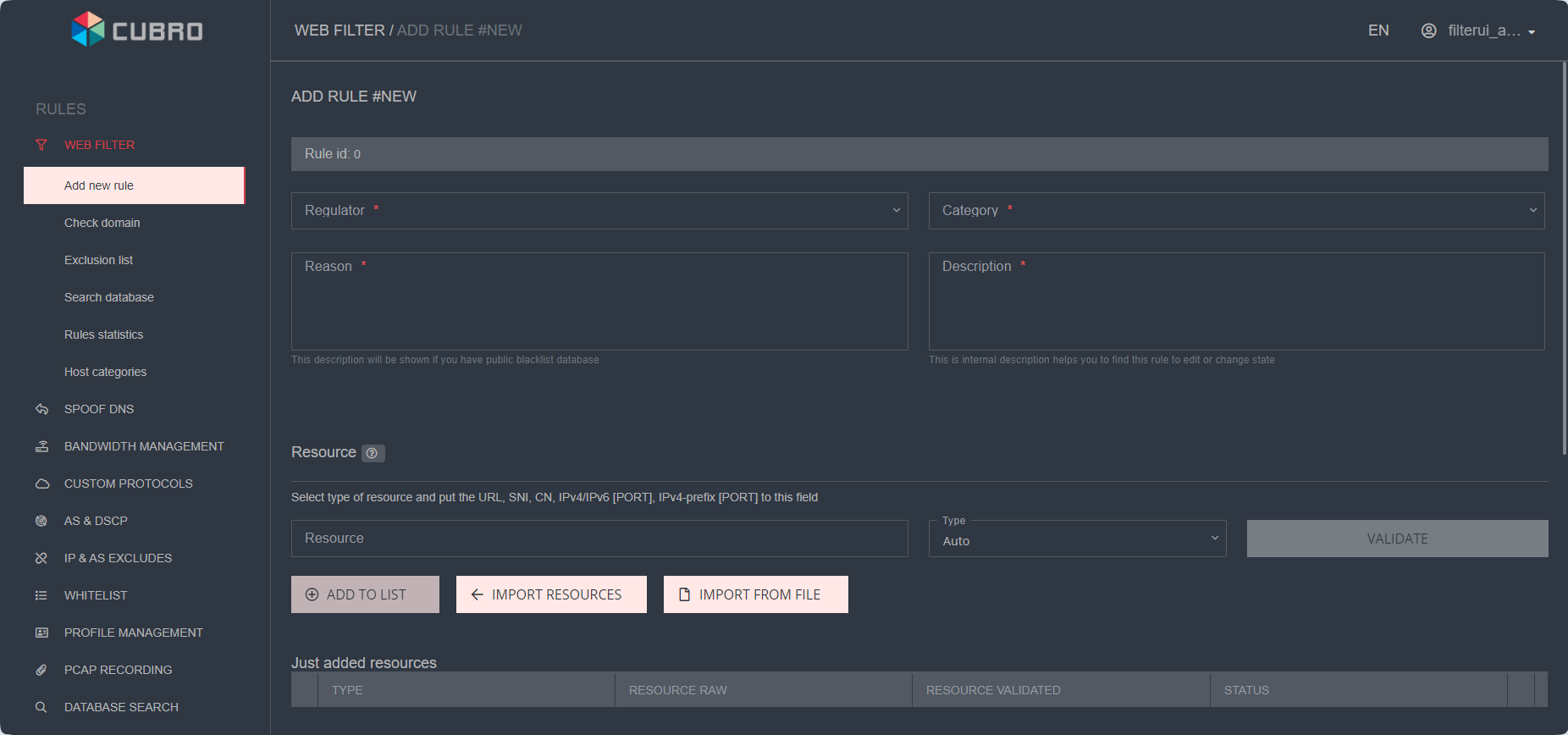
- Specify the required parameters:
- Regulator
- Category
- Description
The values for Regulator and Category are pre-set in the Directories section. They facilitate additional navigation through existing rules.
- Optionally, add a Public Description.
- Add resources to the list individually or by batch in three ways:
- Upload a prepared list from a file. Useful for quickly handling simple, pre-prepared lists with many resources (domains or IPs). Supported formats include XLSX, CSV, and TSV, and multiple files can be uploaded simultaneously. After import, the number of items appears in the corner of the "Import from file" button.
The resource list should be in a single column. - Add resources one at a time. Useful for adding a few resources without needing to prepare files or when supplementing an existing rule. This mode allows SNI/CN verification to enhance reliability.
- Import resources. The most complex yet most reliable method, recommended for handling complex portals. Works with pre-prepared lists. The file must be in txt format, with three columns: Type, raw resource, validated resource, and columns separated by tabs.

Example file content:#Columns are tab-separated - Tab type_id resource_raw resource_validated URL google.com google.com SNI facebook.com *.facebook.com SNI x.com x.com URL bbc.com bbc.com
You can prepare the list using the “Check domain” service, which generates the list in the required format:

- Apply the rule to channels or subscribers from the list. Click "Save changes" below.
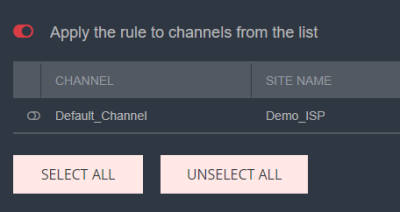
Custom lists can be added and/or the Global List excluded for specific Channels or Subscribers through the GUI—allowing the creation of a "grey" VIP subscriber with minimal filtering.