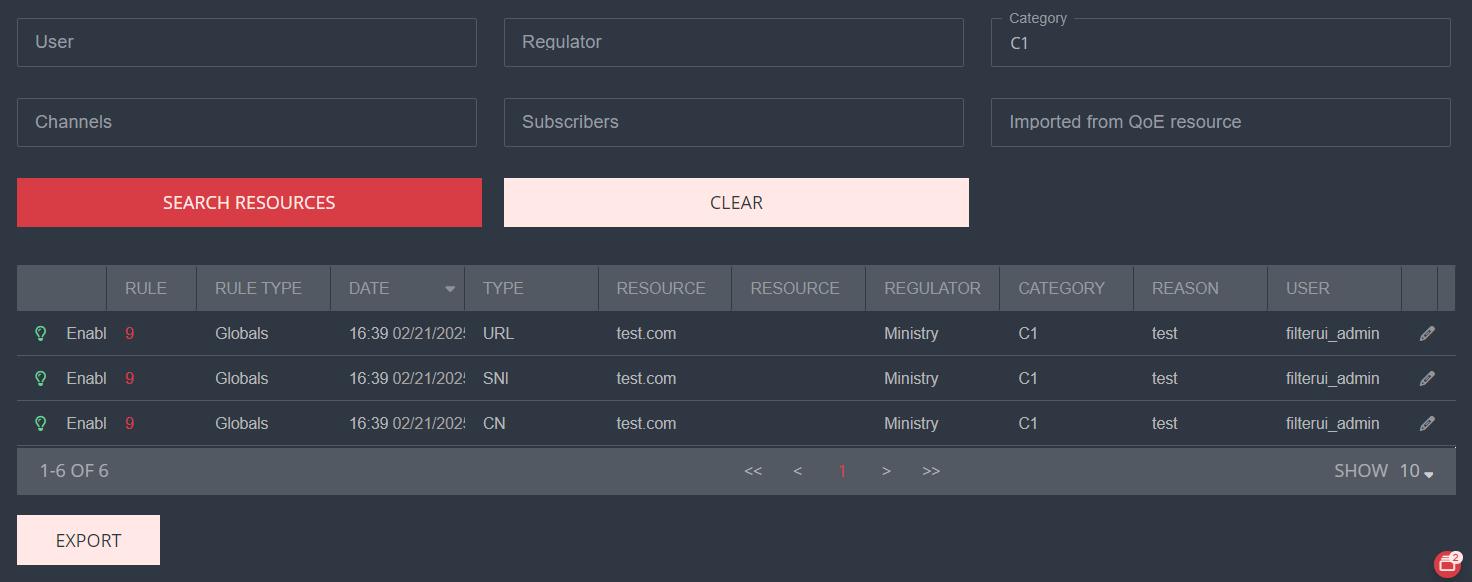
Case 4.5. Searching Created Rules and Resources
All created rules and the resources involved are stored in the WEB Filter section.
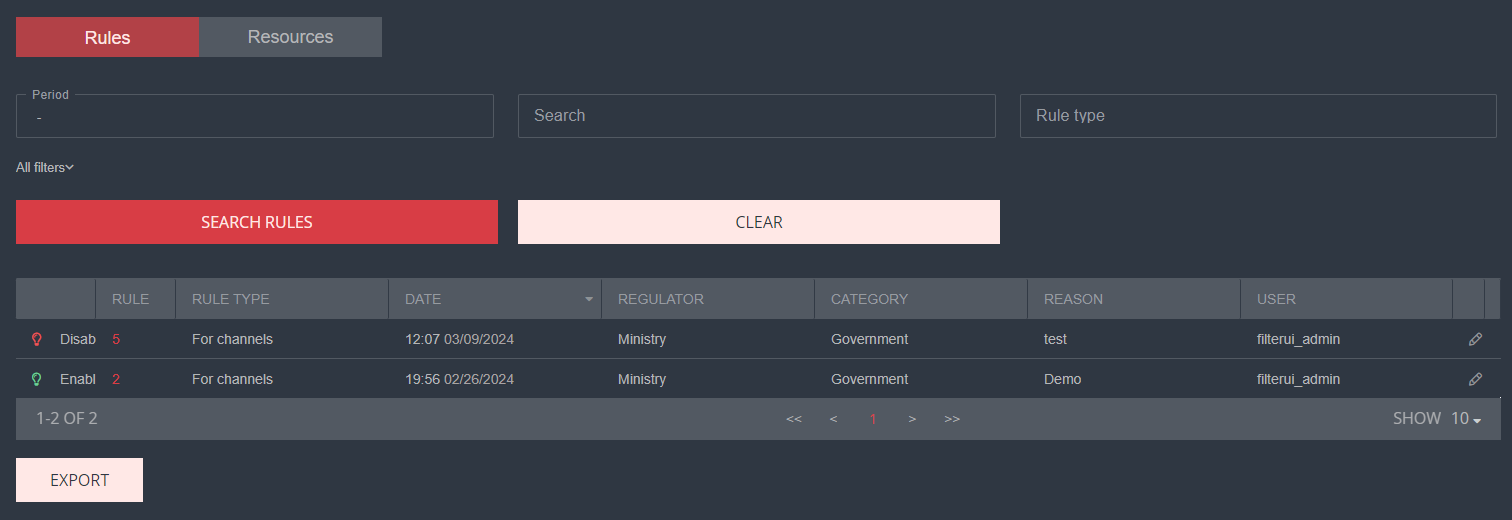
List of Rules
Here you can see which user created the rule, when it was created, whether it is enabled, and other information. You can also edit the rule by clicking on its ID or on the edit icon to the right of each rule.
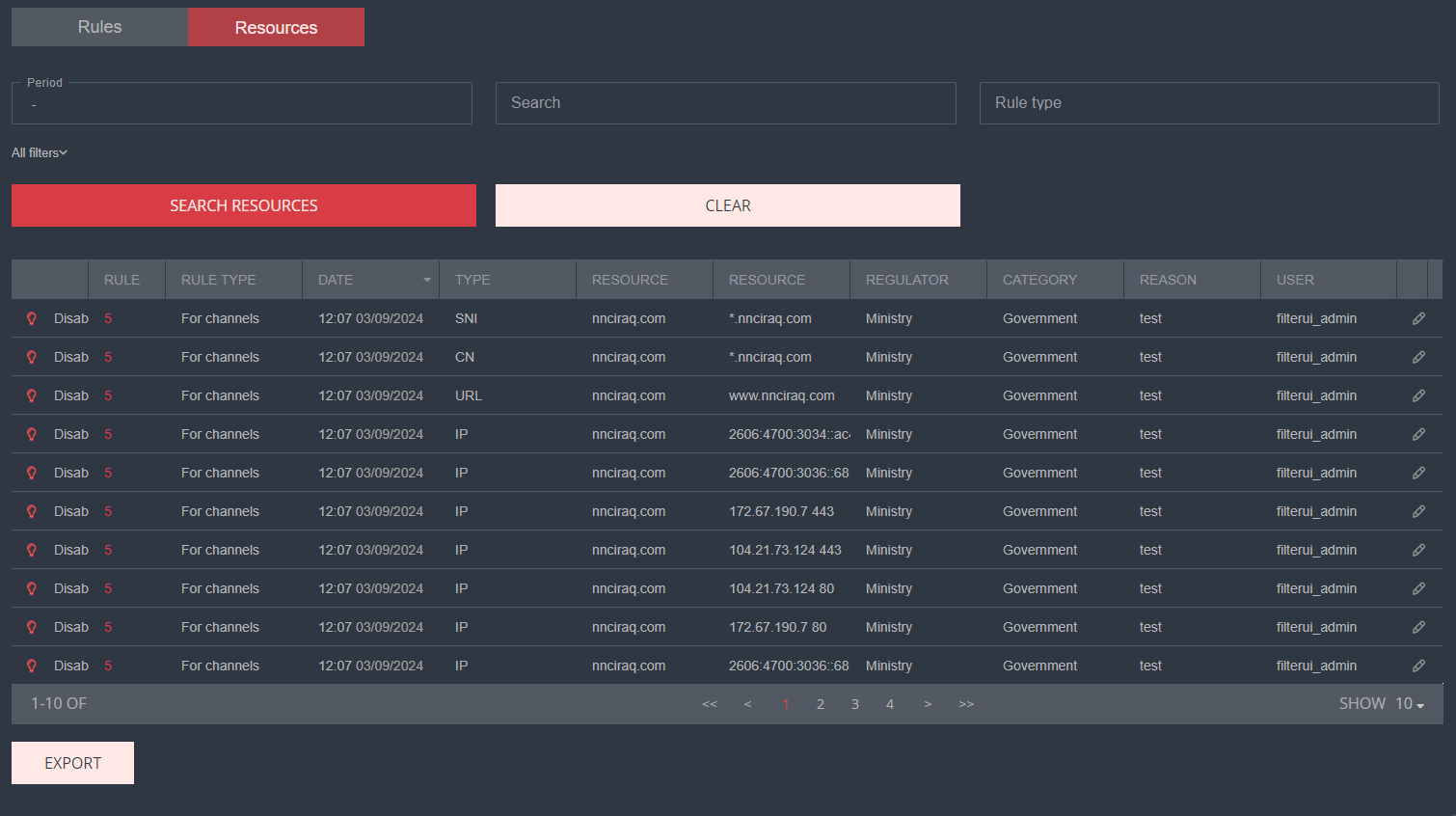
List of Resources
Here you can view all the resources involved in the rules.
Filtering and Searching
The lists of rules and resources can be filtered, and complex searches can be performed on them:
- Search by Basic Filters.
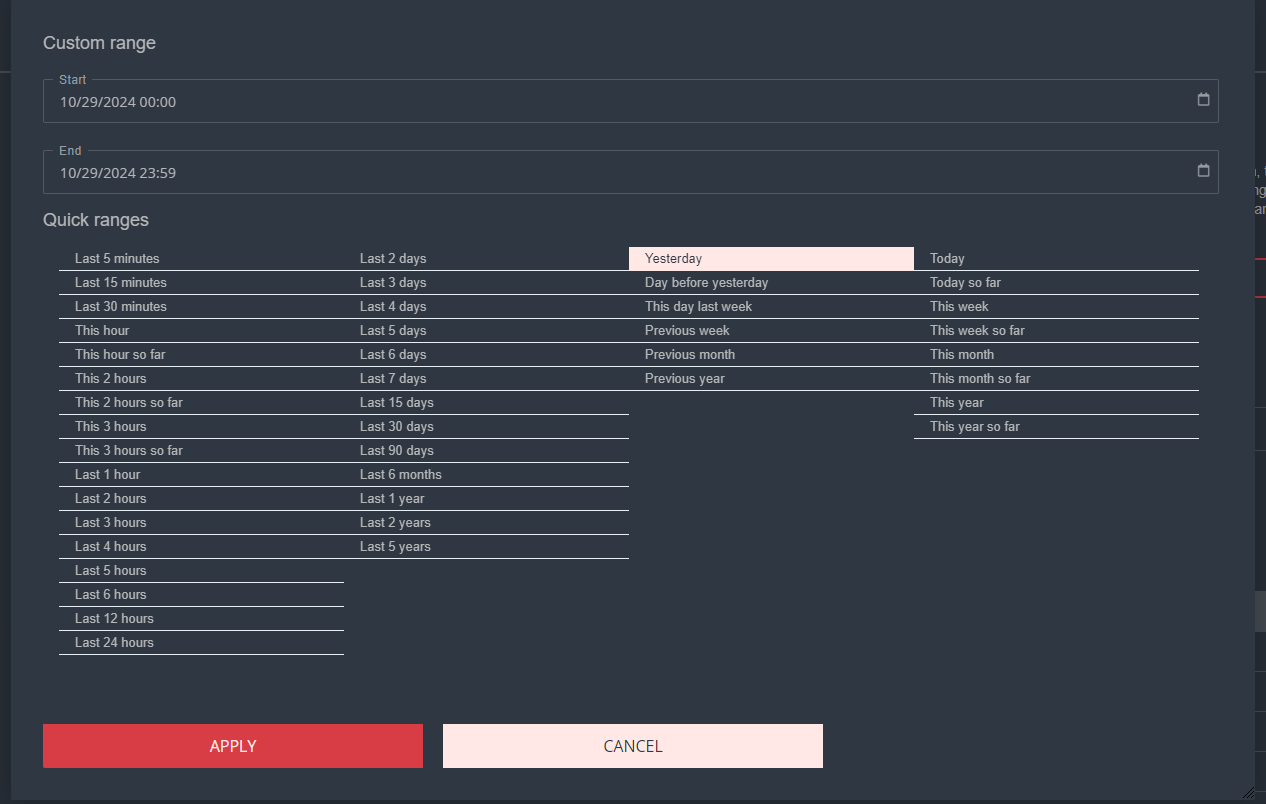
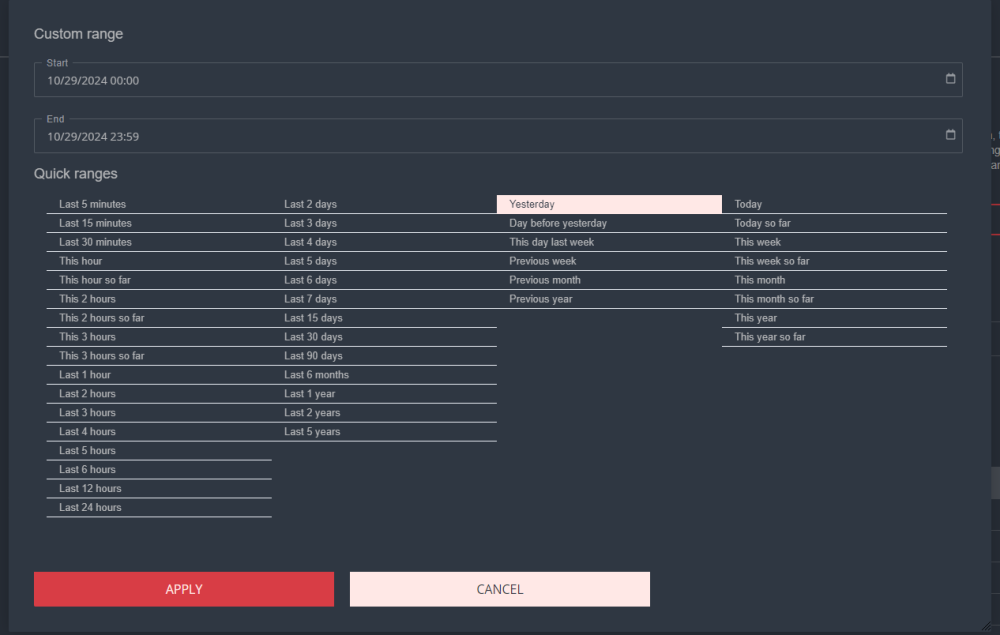
For example, to find a resource added yesterday that has the rule type — Channels, you need to:- Select the desired range, in this case — Yesterday. Click the Apply button.
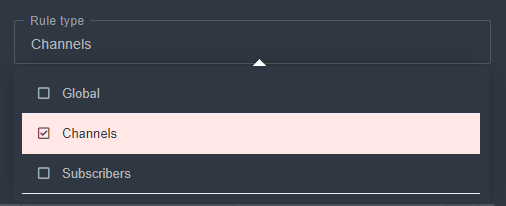
- Specify the rule type — Channels.
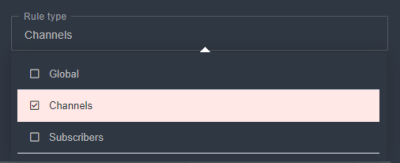
- After entering all filters, click the Apply button. The table will be filtered based on the specified values.
- Additionally, to improve the search, you can enter a value of any rule parameter in the Search field. This field accepts values for all parameters except the Reason (Public description in the rule). You can search by this parameter using the advanced filter list.
- Search by Advanced Filter List.
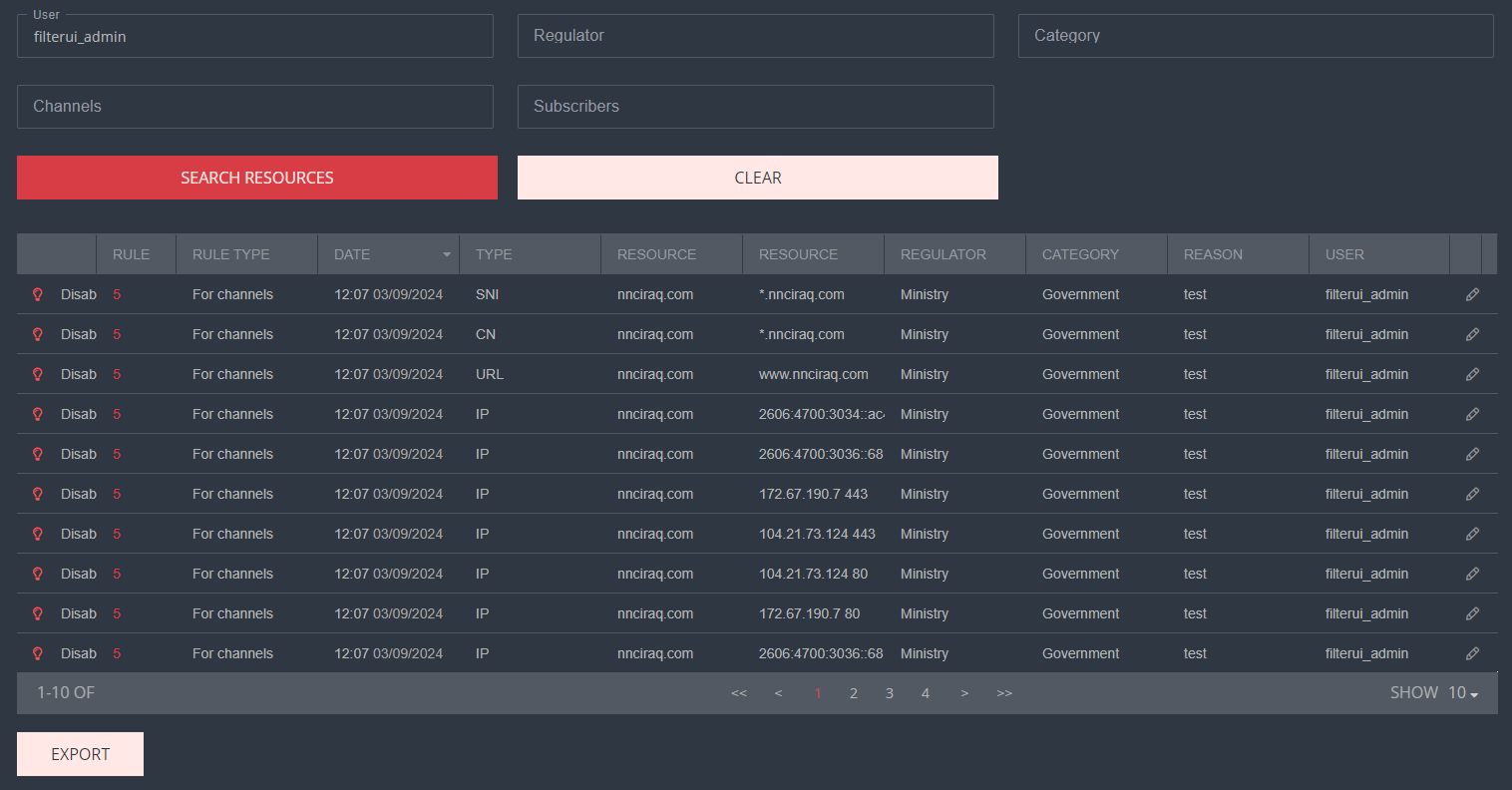
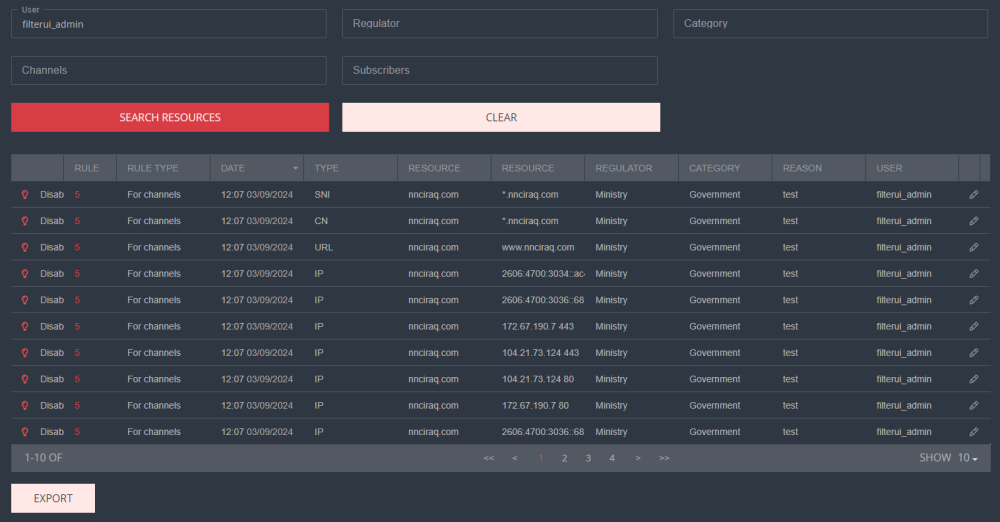
Example 1. You can track rules/resources by a specific user:
You can enter the login in any case. You can also enter only part of the login.
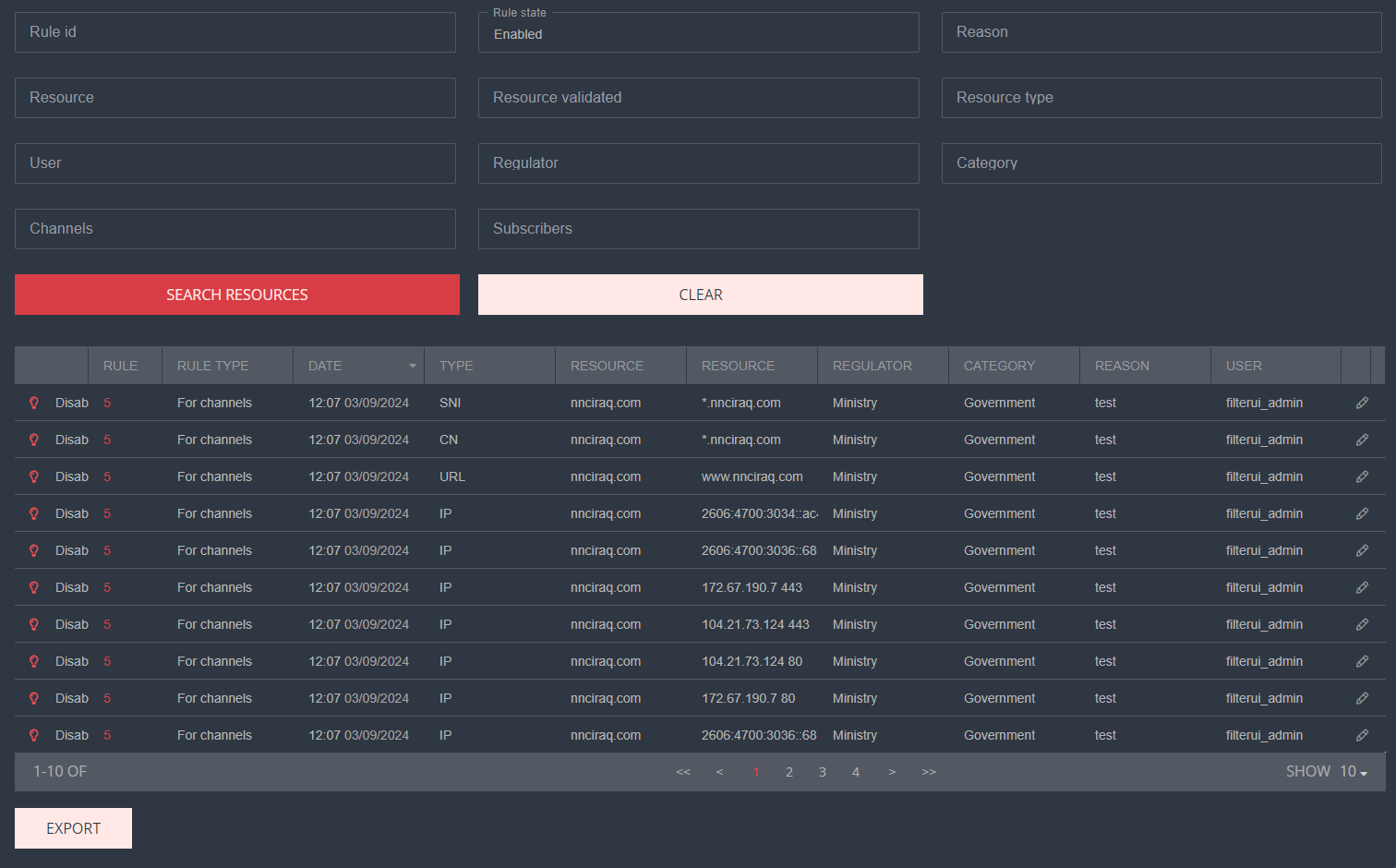
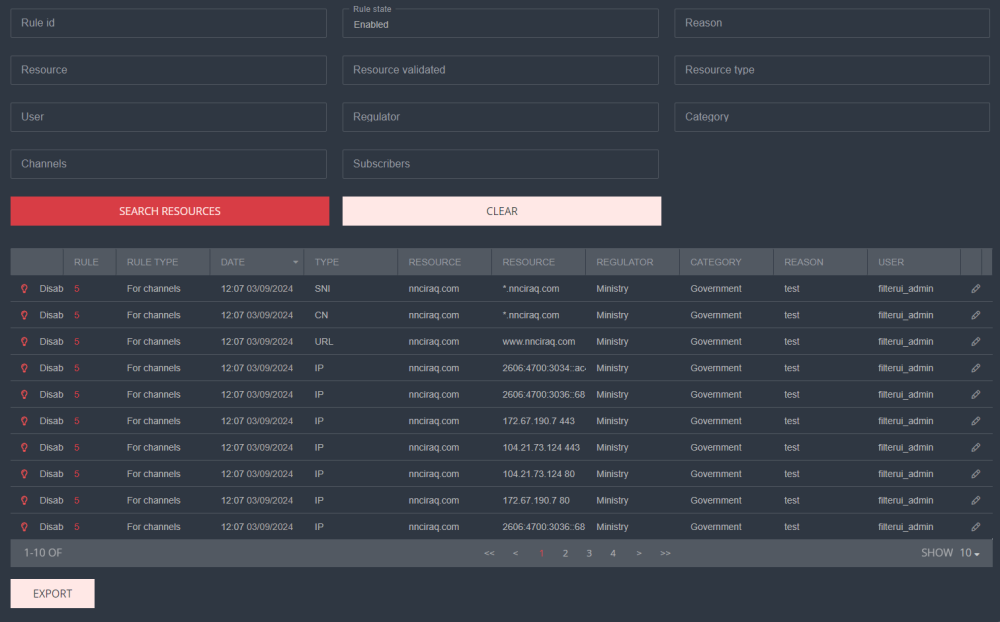
Example 2. Find enabled/disabled rules:
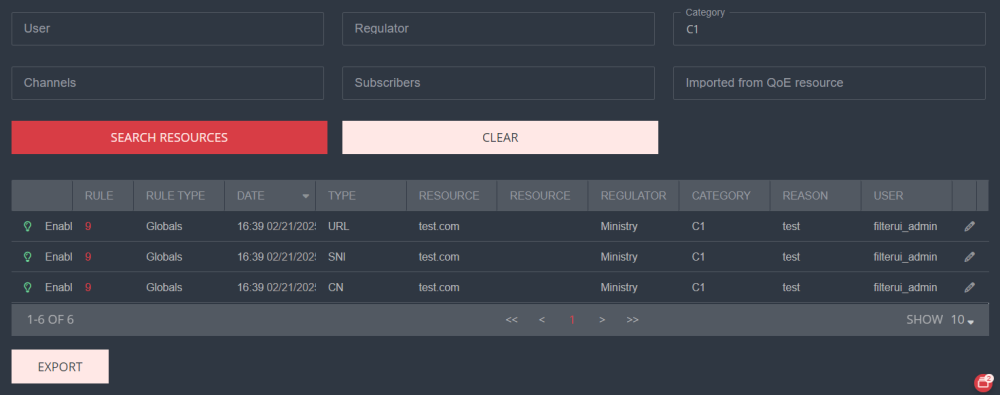
Example 3. Find rules tied to a specific category:
You can also search using other filters and combine them.